
Screaming Frog SEO Spider: A Beginner’s Guide to Full Site Audits
Screaming Frog is the crawler almost every SEO reaches for first. This beginner-friendly guide shows how to run a full site crawl, fix broken links and metadata, check content quality and generate a sitemap — plus how to use its link data before your next press release goes out.
Every website accumulates quiet problems: a redirect chain nobody noticed, a batch of duplicate titles from a template change, images that lost their alt text in a redesign. Search engines find these issues one crawl at a time. Screaming Frog SEO Spider lets you find them first, in minutes, by crawling your site the same way a search bot does.
This guide walks through the jobs beginners actually need the tool for — a full crawl, link checks, content checks, metadata checks and sitemap work — and goes much deeper than a first audit. You will learn how to control exactly what gets crawled, how to read the inlinks and outlinks reports like an analyst, how to hunt thin and duplicate content, how to validate a migration, how to connect analytics data to crawl data, and how to reuse all of it for link building and press work.
You do not need to master every setting on day one. Work through the sections in order the first time, save each crawl with a clear date in the file name, and treat every export as a to-do list: fix the errors, re-crawl, and compare. That loop — crawl, fix, verify — is how professional audits run, whether the site has forty pages or four hundred thousand.
What Screaming Frog is and what the free version covers
Screaming Frog SEO Spider is a desktop crawler for Windows, macOS and Linux. You give it a domain, and it follows links page by page, recording status codes, titles, headings, images, canonicals and dozens of other signals for every URL it finds. The results appear in a spreadsheet-style table you can filter, sort and export. Because it runs on your own machine rather than in a browser tab, it stays fast on large sites, works on staging environments, and can also be driven from the command line when you need to automate repeat crawls.
Think of it as a search bot you control. Googlebot decides for itself what to fetch and when; the Spider fetches what you tell it to, shows you everything it saw, and keeps the raw data in your hands. That makes it ideal for questions a rank tracker cannot answer: Which pages link to this broken URL? Which product pages have no internal links at all? Which titles changed after the redesign? If the answer lives in the HTML, the headers or the link graph of a site, the Spider can surface it.
The free version crawls up to 500 URLs, which is plenty for a small business site or a campaign landing section. A paid licence removes the cap and unlocks configuration options such as JavaScript rendering, custom extraction and integrations with Google Analytics, Search Console and PageSpeed data. Start free: for most first audits, 500 URLs is enough to find the problems that matter.
Free version versus paid licence: what actually changes
The free download is not a demo with the reports locked away. It crawls up to 500 URLs and gives you the core tabs — Internal, External, Response Codes, Page Titles, Meta Description, Directives, Images and more — plus saving and exporting. For a brochure site, a local business or a single campaign microsite, that ceiling may never bite. The moment you audit a real shop, a publisher archive or a multi-language site, you will hit 500 URLs in the first folder.
- A licence removes the 500-URL limit entirely, so one crawl can cover a whole domain including images, scripts and PDFs.
- JavaScript rendering with the built-in Chrome renderer is a licence feature — essential when content and links are injected client-side.
- Custom extraction (pulling prices, stock states, author names or any XPath, regex or CSS-path data into columns) requires a licence.
- Spelling and grammar checks, structured-data validation and the API integrations for Google Analytics, Search Console and PageSpeed Insights are licence features.
- Advanced configuration — form-based authentication, custom robots.txt handling, crawl scheduling in related tooling and priority support — also sits behind the licence.
How to decide which one you need
Stay free while you are learning and while your sites are small: crawl your homepage, your blog and your key landing pages in separate 500-URL runs if you have to. Buy the licence when any one of three things becomes routine — crawls that stop at the cap, pages that only render properly in a browser, or client and stakeholder work where you need analytics columns joined to crawl rows. One licence is tied to a single user, so teams normally hold one per SEO who crawls day to day. Either way, the workflow in this guide is identical; the licence simply widens what one crawl can include.
Running your first full site crawl
Open the Spider, type your homepage URL into the address bar and press Start. Within minutes the Internal tab lists every page the crawler reached, with response codes and indexability at a glance. When it finishes, save the crawl — you will compare against it after fixes.
Before any serious crawl, decide three things: what question you are answering, how large the site really is, and which part of it matters most. A pre-launch check, a migration verification and a content prune all crawl differently. On a large site, limiting the first pass to one section gives you a representative sample, keeps exports manageable and lets you learn the shape of the data before you scale up. Save the configuration you use — File > Configuration > Save As — so the next crawl is directly comparable.
Choose the right crawl mode: Spider, List and SERP
The Mode menu in the top bar is the most important choice you make before crawling. Spider mode is the default: give it one starting URL and it discovers everything reachable by following links, exactly like a search bot exploring from your homepage. List mode works in reverse — you supply the URLs. Upload a text file, a CSV, a spreadsheet, an XML sitemap or paste URLs manually, and the Spider audits precisely that set and nothing else. List mode is perfect for re-checking yesterday’s fixes, auditing a client-supplied URL list, verifying redirect mappings or checking landing pages without crawling an entire domain. SERP mode is more specialised: upload search-result data and let the Spider fetch the ranking pages to extract titles, descriptions and other SERP-facing elements for comparison.
Crawl one folder or section only
To audit just a blog or a help centre, enter the folder URL instead of the homepage and, under Configuration > Spider, keep the crawl scoped so the Spider stays inside that path. This keeps small crawls fast and reports readable. The mirror-image setting is Crawl Outside of Start Folder: tick it when you started inside a subfolder but actually want the whole site, otherwise the Spider politely refuses to climb above the folder you gave it. If you have been experimenting and lost track of the defaults, reset them with File > Configuration > Clear Default Configuration, then re-apply only the changes you intend.
Include and exclude rules with regular expressions
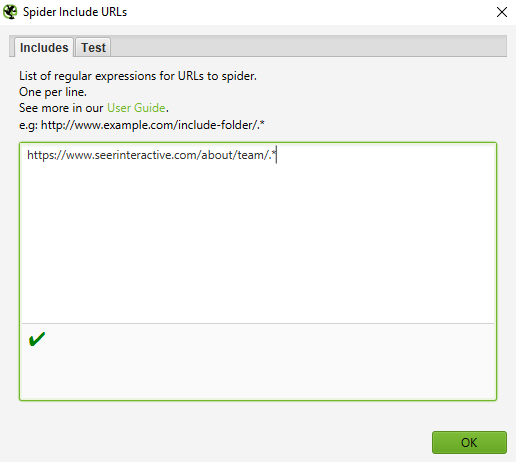
Configuration > Include and Configuration > Exclude are where you draw the boundaries of a crawl with regular expressions. Exclude is the blunt instrument most people need first: add patterns to skip faceted-navigation combinations, print views, internal search results, calendar traps that generate endless dated URLs, or a staging path that should never appear in reports. A pattern excluding URLs containing a question mark, for example, can collapse a parameter explosion into the clean canonical set. Include does the opposite and is more delicate: when an Include rule exists, only URLs matching it are crawled, which is how you restrict a huge domain to one subdirectory, one language tree or one subdomain family. Both dialogs have a Test tab — use it every time. Paste a handful of URLs that should match and a handful that should not, and confirm the regex behaves before you burn an hour crawling the wrong slice of a site. Test, save the configuration with a descriptive name, and document the rule in your audit notes so a colleague can reproduce the crawl exactly.
Crawl all subdomains
By default the Spider treats other subdomains as external: crawl example.com and links to blog.example.com or shop.example.com are recorded as outbound links, not followed. When your real site is spread across subdomains — a common pattern for shops, support centres, booking engines and regional editions — that default quietly hides half the site. Open Configuration > Spider and enable Crawl All Subdomains, and the crawler will follow links onto any subdomain of the starting domain and treat the whole family as one internal universe. Status codes, inlinks and indexability then read consistently across the properties, which is exactly what you want when a user journey crosses from marketing pages to a shop to a help centre. Remember the flip side: the crawl can grow very large very quickly, so pair this setting with sensible Exclude rules and the storage advice below.
Collect every page on a site
Sometimes the deliverable is simply a complete inventory: every HTML page on the domain, in a spreadsheet. To build one cleanly, open Configuration > Spider and untick the options to check images, CSS, JavaScript and SWF files. With resource crawling off, the Spider spends all its effort on pages and the links between them instead of cataloguing every asset. Run the crawl, open the Internal tab, filter the Content Type column to HTML, and click Export. The resulting CSV is your page inventory — URL, status, title, word count, inlinks and depth in one file. That inventory is the starting artefact for content audits, redesign scoping, redirect planning and sitemap reviews, and it is worth regenerating and archiving at the start of every quarter so change over time is visible at a glance.
List the pages of one subdirectory
To inventory a single subdirectory — say everything under /guides/ — combine two tricks from this section. Start the crawl at the subdirectory URL with the crawl kept inside the start folder, and turn off image, CSS and JavaScript checking so the export stays page-focused. The Internal tab filtered to HTML then lists just that section’s pages. This is the fastest way to answer everyday questions: How many help articles do we actually have? Which product guides were left behind in the last restructure? Which blog posts predate the rebrand? Save the export with the folder name and date; section inventories like this become the checklists writers and developers work from during clean-ups.
Find all subdomains of a site
A crawl can only follow subdomains it can discover, and unlinked subdomains stay invisible to link-following alone. There are three practical ways to build the full list. First, crawl with Crawl All Subdomains enabled: every linked subdomain the crawler reaches will appear in the data, and the External tab reveals which subdomain homepages are linked, with what anchors. Second, use search operators in a browser — a site: query for the domain with the main host excluded surfaces indexed subdomains, which you can scrape into a spreadsheet, trim back to the hostnames, deduplicate and upload. Third, use a dedicated subdomain-enumeration service, export its results, and load that list into the Spider in List mode. Whichever route you take, finish by crawling the assembled list: status codes alone often reveal forgotten test installs, retired campaign hosts and old regional sites that still represent the brand in public.
Analyse large e-commerce catalogues
A catalogue with tens of thousands of products, facets and filters is where crawl discipline pays for itself. Start with storage: the Spider can hold crawl data in memory or write it to disk in database storage mode. Database storage is the safer default for big jobs — it survives pauses, lets you reopen and resume a crawl, and avoids the crawl dying when a laptop runs out of RAM; memory mode is faster on small crawls if your machine has headroom. Next, protect the crawl budget. Untick resource checks you do not need, exclude faceted and sorted duplicates with regex, consider capping crawl depth for the first pass, and split the domain by category with Include rules so each run finishes and can be checked before the next begins. Increase the memory allocation in the settings if you stay in memory mode. Finally, crawl in working hours only with the client’s knowledge, watch server response codes as you go — a rising tide of 503s is the crawler telling you to slow down — and save partial results rather than losing a half-finished overnight run.
Crawl gently on a slow or old server
Not every server can shrug off a desktop crawler at full speed, and an aggressive crawl against a fragile shared host can take a small business offline — an outcome that helps nobody. Open Configuration > Speed and reduce both levers: the number of threads running simultaneously and the maximum URLs requested per second. Dropping to a single thread at one or two URLs per second turns the Spider into a polite visitor that most legacy servers handle comfortably. If the crawl still returns clusters of server errors, open Configuration > Spider > Advanced and raise the Response Timeout and the 5xx Response Retries so slow-but-alive pages are recorded accurately instead of being written off. Tell the site owner when you plan to crawl and ask whether your IP should be allowlisted — many firewalls and rate limiters block unfamiliar fast-moving agents by design. Slow is not a failure mode here; a complete gentle crawl beats a fast partial one every time.
Sites that need cookies
Search bots crawl without accepting cookies, but real sites sometimes gate content behind cookie consent, age checks, region selectors or session preferences, and you may need the version of the site a cookie-carrying visitor sees. In Configuration > Spider > Advanced, enable Allow Cookies and the Spider will accept and return cookies during the crawl. You can also import a cookie file exported from your browser session, which is handy when a consent choice or a logged-in preference is stored client-side. Use this deliberately: document that the crawl ran with cookies, because the results describe the cookied experience, which may differ from what a search bot receives.
Form-based authentication for login-walled sites
Staging servers, membership sites and customer portals often sit behind a login form rather than a simple password prompt. The Spider handles two kinds of authentication. Standards-based (HTTP basic) authentication triggers a pop-up when the crawler meets a protected page, where you enter the username and password; manage or disable it under Configuration > Authentication. Form-based authentication goes further: it drives a built-in browser window through the actual login form — enter the URL, fill the fields, submit — and then crawls while carrying that authenticated session. Treat this feature with respect. A crawler clicks links indiscriminately, and inside an admin area links can create, edit or delete things. Crawl a staging copy rather than production where you can, exclude admin and account-action paths with regex before you start, use a dedicated read-only test account, and never leave authenticated crawl files lying around unprotected — they can contain the very content the login was guarding.
Internal and external links, in depth
Links are the raw material the Spider understands best, and this section is where a casual crawl becomes an audit. Every link the crawler finds is stored with its source page, destination, anchor text, directives and position on the page — which means most link questions are not new crawls, just new ways of slicing data you already have. Learn the reports below once and you will reuse them on every project.
A quick orientation first. Inlinks are the links pointing into a page; outlinks are the links a page sends out. Select any URL in the top window and the lower pane shows its In Links and Out Links tabs, so you can inspect one page in detail without exporting anything. When you do need the full picture, Bulk Export > Links > All Links and Bulk Export > All Outlinks produce complete CSVs — powerful, but large: on a big site the all-links export can run to millions of rows, so export per-section or use the targeted response-code reports described next instead of dumping everything by reflex.
Find broken links page by page
Filter the Internal tab by status code. Anything returning 404 needs a decision: restore the page, redirect it to the closest match, or update the internal links pointing to it. The targeted exports under Bulk Export > Response Codes show which pages link to each broken URL, so you fix causes rather than symptoms: Client Error (4xx) In Links for broken targets, Server Error (5xx) In Links for failing ones, and the No Response report for URLs that never answered at all. Work page by page in the interface when the list is short — click a broken URL, open the In Links tab in the lower pane, and you see every source page with the exact anchor text used, ready to hand to an editor. Prioritise by inlink count and by source quality: a 404 linked from the homepage navigation outranks a 404 linked once from a 2016 blog post, and fixing the source link is usually better than adding a redirect, because it keeps the link graph honest and avoids chains forming later.
Check outbound and external links
The External tab applies the same logic to links leaving your site. Make sure Check External Links is enabled in Configuration > Spider before crawling, then filter the External tab by status code to surface every non-200 destination. Dead outbound links make your content look unmaintained; redirecting ones often mean a partner quietly moved a page you cite. Click any external URL and the In Links tab in the lower pane lists your pages that reference it, with anchors — that is your fix list. Bulk Export > External Links gives the destination-level summary, while Bulk Export > All Outlinks gives every individual placement, including links to your own subdomains; filter the destination column to your domain if you want only true third-party links. Run this check before any content refresh or press campaign: journalists and readers judge a resource by where it sends them, and a page citing three dead sources undermines the pitch it sits next to.
Redirect chains and redirected links
Redirect chains matter almost as much as outright breakage. Each extra hop adds latency, and a chain that ends in a 404 or loops entirely is worse than no link at all. The Redirect Chains report under Reports reveals URLs bouncing through two or more hops, showing the full sequence from first URL to final destination. For the fix list, use Bulk Export > Response Codes > Redirection (3xx) In Links: it lists every internal link that points at a redirecting URL, so you can update those links to point straight at the final destination. There are parallel reports for JavaScript redirects and meta-refresh redirects — check those too, because they are slower and more fragile than server redirects and often hide in old campaign pages. To analyse chains inside a spreadsheet, join the inlinks export to the response-codes export on the destination column (a simple lookup) so each redirected link shows its final landing URL; then the edit becomes a mechanical find-and-replace job for the development team. Finish by re-crawling: the chain report should shrink to deliberate one-hop redirects only.
Internal-linking analysis: depth, orphans and where authority flows
Sort the Internal tab by the Inlinks column, descending, and you see your site the way link equity sees it: the pages your own site votes for most. Compare that list with the pages that actually matter commercially — a mismatch is an internal-linking strategy waiting to be written. The Crawl Depth column shows how many clicks a page sits from the homepage; important pages buried at depth five or more are hard for bots and humans alike to reach, so pull them closer with links from relevant hubs, guides and listing pages rather than stuffing them into global navigation. Orphan pages — pages with no internal inlinks at all — need the combined view: crawl the site, connect the sitemap and analytics data as described later in this guide, then run Crawl Analysis to generate the Orphan Pages report under Reports. An orphan that earns traffic is a page search engines found but your own site forgot; either link it properly into the structure or, if it is genuinely retired, remove it and handle the URL deliberately. Also watch the Outlinks column while you review: pages linking out internally to hundreds of destinations dilute their value and often signal auto-generated tag or author archives that should be pruned or noindexed.
Link position, path and target attributes
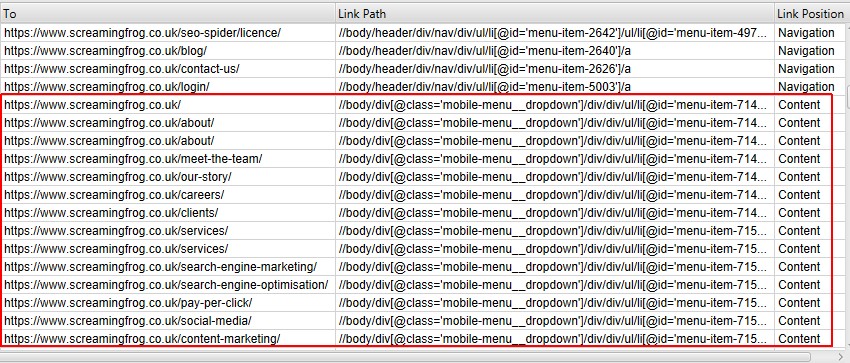
Not all links are equal, and the Spider records where each one lives. The Link Position classification — navigation, header, footer, sidebar or content — is derived from the link’s path in the page structure and from semantic HTML elements and familiar naming patterns. A page whose only inlinks sit in footers is effectively unendorsed by your content, however many inlinks the raw count shows; filtering inlinks to content-position links gives a truer picture of editorial support. When a theme uses non-standard markup and positions are misclassified, define your own rules under Configuration > Custom > Link Position by matching substrings in the link path — a mobile-menu class, for instance, can be reclassified as navigation where it belongs. The same detail view exposes the link’s path type — absolute, relative, protocol-relative or root-relative — which matters when a migration or a protocol change turns one style into a source of duplicate or insecure URLs, and the target attribute, so you can audit which links force a new tab with _blank. That last check is a genuine usability review: links opening new tabs inconsistently is a pattern worth standardising.
Audit content: thin pages, duplicates and images
Technical health gets a site crawled; content quality gets it ranked. The Content tab and the columns behind it turn a crawl into a content audit: word counts, duplication scoring, spelling and grammar, and the media files each page depends on. Work through the checks below on any section before you commission new content for it — fixing what exists is almost always cheaper than publishing around problems.
Find low-content pages
Sort by word count to surface near-empty pages — thin content rarely ranks and can drag down a whole section. In the Internal tab filtered to HTML, scroll to the Word Count column and sort ascending; the pages at the top are stubs, placeholder pages, empty category shells and forgotten test posts. The Content tab’s Low Content Pages filter does the same job with an adjustable threshold — the default flags pages under roughly 200 words, and you can set your own line under Configuration > Spider > Preferences, because a photo gallery and a buying guide should not be judged by the same ruler. Treat the list as triage, not a deletion order: some short pages are legitimately short (contact, checkout, simple answers), while others are thin because a template fails to render the body, which the rendered crawl view reveals immediately. For e-commerce, go one level deeper and extract the actual description block with a custom extraction or XPath, so navigation and boilerplate do not inflate the count of a product page whose real copy is two sentences.
Duplicate content and similarity percentages
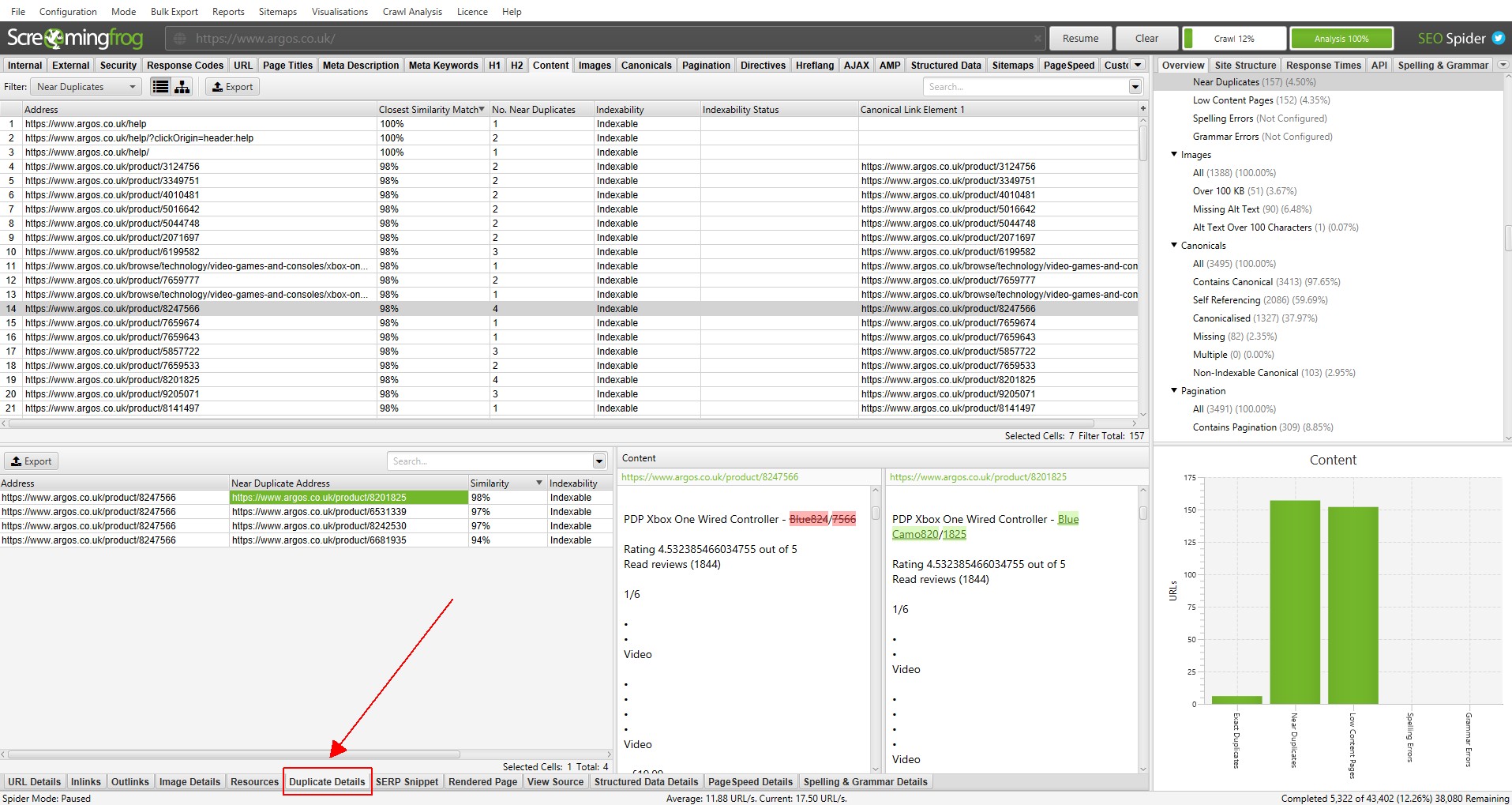
The duplicate detection tools flag pages that compete with each other for the same queries. The Content tab offers Exact Duplicates — pages whose main content is identical — and Near Duplicates, scored with a similarity percentage. The near-duplicate engine uses a minhash comparison with a default threshold of 90 percent similarity, adjustable under Configuration > Content > Duplicates, and the Duplicate Details pane shows each flagged URL alongside its closest match so you can read the pair side by side. Boilerplate is excluded intelligently: navigation, headers and footers are stripped from the comparison, and you can refine which elements, classes and IDs count as content. High similarity is not automatically a sin — printer-friendly variants, regional pages and genuinely similar products exist — but every near-duplicate cluster deserves a conscious decision: merge the pages and redirect, differentiate them with unique substance, or canonicalise one to the other. Undecided clusters are how sites end up splitting clicks and links across three versions of the same page while none of them ranks properly.
Spelling and grammar checks
The Spider can also check spelling and grammar across page text, which is worth doing before any high-traffic page gets promoted. Enable it under Configuration > Content > Spelling and Grammar (a licence feature), choose or confirm the language — the crawler detects it from the page’s language attribute by default — and add your brand names, product names and industry terms to the custom dictionary so they are not flagged forever. After the crawl, the Content tab filters for Spelling Errors and Grammar Errors show counts per page; the side panel lists the unique errors and how many URLs each one touches, which instantly separates one-off typos from template-level mistakes repeated on five hundred pages. Fix the template ones at the source, export the rest via Bulk Export > Content, and work through them with the writers. Search quality guidelines treat sloppy text as a quality signal, and readers certainly do — a press release landing page with a typo in the headline costs credibility no backlink can refund.
Extract image links page by page
To see exactly which images a given page uses, select the page in the upper window and open the Image Info tab in the lower pane: every image found on that page is listed, and right-clicking an entry lets you copy or open the image URL directly. The reverse view is just as useful — select an image and the same pane shows the pages it appears on. If you only need one page’s images, crawl that single URL with the crawl depth limited to one level and open the Images tab for a clean, page-scoped list. These views answer practical questions fast: is the new hero image actually deployed sitewide, which pages still reference the old logo file, and did the migration leave any page pointing at images on the staging domain?
Audit image alt text
Two quick wins hide in the Images tab: oversized image files that hurt load times, and missing alt attributes. Make sure Check Images is enabled in Configuration > Spider, crawl, then use the Images tab filters: Missing Alt Text, Missing Alt Attribute, and Alt Text Over 100 Characters — the last one catches keyword-stuffed and filename-dumped alt text that helps nobody. For each flagged image, the lower Image Info pane shows the pages using it in its From column, so an editor knows exactly where to add the text. Prefer spreadsheets? Bulk Export > Images gives the full inventory, and the Images Missing Alt Text Inlinks export pairs every deficient image with its source pages in one fix list. Export both the heavy-file list and the alt lists and hand them straight to whoever maintains your CMS; image weight and alt coverage are two of the few audit findings that can usually be closed without developer involvement.
Find CSS and JavaScript files
Assets matter because they decide what renders, how fast, and whether the crawler sees your content at all. In Configuration > Spider, set the Spider to crawl and store CSS, then filter the Internal tab to CSS to list every stylesheet the site references, with status codes — a 404ing stylesheet is a visual bug users may not report but definitely experience. Do the same with JavaScript checking enabled to inventory scripts. These lists power several useful sweeps: find pages still loading a retired tag manager or consent script, locate the one template pulling a heavy library the rest of the site dropped, and spot render-blocking files attached to pages that should be lean landing pages. Cross-reference with the inlinks detail for any asset to see its From pages before you propose removing it — a script that looks orphaned in a list may be doing quiet work on a single important page.
Detect jQuery and other plugins in use
With JavaScript checking enabled, filter the Internal tab to JavaScript files and search the addresses for jquery: every matching library file will be listed, and its inlinks show the pages loading it. A bulk All Links export filtered on the destination column achieves the same result in a spreadsheet. Why bother? Because plugin sprawl is a performance and maintenance story — multiple jQuery versions on one site, sliders and lightboxes from a previous design, and libraries loaded for one widget on one page are all common findings. The SEO-relevant check is subtler: make sure any content a plugin reveals — tabs, accordions, expandable specifications — exists in the page source or renders reliably, rather than appearing only after interactions a crawler never performs.
Find linked PDFs and other documents
Filter the Internal tab to PDF after a crawl and you have the site’s document library: brochures, whitepapers, manuals, menus, regulatory filings. PDFs accumulate quietly and cause real problems — outdated price lists still ranking, pre-rebrand brochures still linked from live pages, documents with no HTML equivalent locking content away from both users and internal linking. The inlinks view for each PDF shows which pages reference it, so updates become targeted: replace the file at the same URL where possible, or update every linking page when the file must move. The same filter approach works for other document and media types your CMS exposes, giving content teams a complete inventory to review for accuracy, branding and legal compliance at least once a year.
Find pages with social share buttons
Share buttons are added by plugins and templates, which means they appear in unexpected places and vanish from places they should be. To find them, set up a custom search before crawling: under Configuration > Custom > Search, add a filter containing a distinctive snippet from the share code — a fragment of the share URL or the plugin’s markup, such as the path a social network uses for its like or share widget. After the crawl, the Custom tab shows every page containing that snippet, per filter. Run the logic in reverse as well: export your key landing and article pages and check them against the contains list to find high-value pages missing sharing options entirely. With up to ten search filters per crawl, you can cover several networks and widgets in a single pass.
Find pages using frames
Frames and iframes still turn up in embedded booking engines, legacy application pages, old microsites kept alive inside a modern shell, and third-party tools pasted into content pages. Because framed content is awkward for indexing and attribution, it deserves an explicit inventory. Set a custom search filter for the iframe tag or for the specific embed source before the crawl, then review the Custom tab results. For each hit, decide whether the frame is deliberate and acceptable — many legitimate embeds are — or a legacy shortcut that should be replaced with native content or a direct integration.
Find pages with embedded video and audio
The same custom-search technique inventories rich media. Add filters for the embed snippets your platforms use — the player path of your video host, an audio player’s markup, a podcast embed — and crawl. The Custom tab then maps every page carrying video or audio, which supports several jobs at once: confirming flagship videos are embedded on the pages the campaign actually promotes, finding media pages missing transcripts or surrounding copy, and catching autoplaying or duplicated embeds that slow a template down. Pair this list with the response-time and PageSpeed checks later in this guide and you have a realistic picture of what your heaviest, richest pages cost the visitor — and whether the content earns it.
Fix titles, descriptions and directives
Metadata is the highest-leverage data in any crawl because it is generated by templates: one bug repeats five hundred times, and one fix repairs five hundred pages. The Page Titles, Meta Description, H1 and Directives tabs exist to make those patterns visible at a glance.
Long titles and descriptions
The Page Titles tab flags the classics with ready-made filters: Missing, Duplicate, Over 60 Characters, Below 30 Characters, Over and Under the pixel-width limits, and Same as H1. Pixel width matters more than character count — wide letters truncate earlier — so use the width columns and the SERP snippet preview in the lower pane to judge what a searcher actually sees. The Meta Description tab mirrors this with its own filters, including Over roughly 155 Characters and multiple descriptions on one page, a classic sign of two plugins fighting. Because the data sits in one table, a site-wide template bug stands out instantly — fifty identical titles usually means one fix in the theme, not fifty edits. Work the filters in order: missing first, duplicates second, length third, because a page with no title at all is a bigger problem than a good title that runs ten characters long.
Duplicate titles, descriptions and headings
Duplicate metadata is rarely fifty separate mistakes; it is a small number of causes wearing many URLs. Sort the Page Titles and Meta Description tabs by their Duplicate filters and group the results: paginated archives inheriting the parent title, product variants sharing one name, location pages generated from a single template, and HTTP/HTTPS or trailing-slash duplicates all produce characteristic clusters. Fix the generator, not the symptoms — adjust the template so pagination appends a page marker, variants include the distinguishing attribute, and location pages pull their town or region into the title. The H1 tab deserves the same pass: multiple H1s, missing H1s, and H1s duplicating the title tag verbatim all dilute a page’s topical signal. After the fix, re-crawl just that section in Spider mode and confirm the duplicate counts collapse before you sign the work off.
Directives: noindex, nofollow and canonicals
Check the Directives tab as well. It collects every robots instruction the crawler met — from meta tags and X-Robots headers — and its filters let you list pages by directive type: index, noindex, follow, nofollow, noarchive, nosnippet, noimageindex, notranslate, unavailable_after and refresh, among others. A stray noindex on a section you actually want ranked is one of the most expensive mistakes in SEO, and this is where you will spot it: filter to Nofollow/Noindex, compare against the list of pages the business cares about, and investigate every surprise. The Canonicals tab works the same way for canonical tags, separating canonicalised pages (which point elsewhere) from pages missing canonicals or carrying conflicting ones. Cross-check canonicalised URLs against your sitemap: a URL should never simultaneously declare “index my canonical instead” and sit in the sitemap asking to be indexed itself.
Check robots.txt rules against the crawl
By default the Spider respects robots.txt, preferring rules written specifically for its own user agent if they exist, then Googlebot’s, then the global rules — it follows one set, so a Spider-specific block changes behaviour completely. The Response Codes and indexability columns mark URLs as Blocked by Robots.txt, and the robots.txt configuration under Configuration > Robots.txt lets you change stance deliberately: respect the file, ignore it entirely for diagnostic crawls of your own staging site, or supply a custom robots.txt to test proposed rules before they go live. That last option is the professional move before any robots edit ships — paste the draft file, crawl, and confirm the blocked and allowed sets match the intention exactly. A single mis-typed wildcard in robots.txt can deindex a shop overnight; testing it in the crawler first turns a risky deploy into a reviewed one.
Validate structured data and microdata
Structured data can be validated too if you enable the checks in the configuration. Under Configuration > Spider > Extraction (structured-data options in the Spider settings), turn on JSON-LD, Microdata and RDFa detection, and the Structured Data tab appears after the crawl with filters for pages containing markup, pages missing it, and — most usefully — validation errors and warnings measured against schema specifications and search-engine requirements. Reports > Structured Data exports the error list for developers, with the offending URLs and issue types grouped so one template fix clears a whole class. If you are hunting one specific markup type before enabling full validation, a custom search filter containing the schema snippet — the itemtype address for the type you want — lists every page carrying it. Pay special attention after template changes and plugin updates: structured data breaks silently, and the first symptom is usually lost rich-result eligibility weeks later, long after anyone connects it to the deploy.
Build and validate an XML sitemap
Under Sitemaps > XML Sitemap, the Spider generates a sitemap from your crawl, letting you include or exclude canonicalised, noindexed or PDF URLs. Only indexable, canonical, 200-status pages belong in a sitemap — anything else wastes crawl budget and sends mixed signals. The generator dialog lets you set which response codes are included, and adjust last-modified dates, priority and change frequency — treat those last two fields sceptically, set them honestly or leave sensible defaults, and spend your energy on the URL set itself, which is what actually matters.
Already have a sitemap? Switch to list mode, upload the sitemap URL and crawl it. Pages in the sitemap that return errors, redirect, or are orphaned (in the crawl but never linked internally) all show up in the Sitemap report for cleanup.
Build a sitemap from an uploaded URL list
A crawl is not the only starting point. If your source of truth is a CMS export, a developer’s URL inventory or a curated list of pages that must be indexed, switch Mode to List, upload the file (or paste the URLs), and run the check: the Spider fetches each URL and records its status, canonical and indexability. Then open Sitemaps > XML Sitemap exactly as with a crawl — the generator builds the file from the URLs that passed, quietly excluding the ones that redirect, error or canonicalise elsewhere. This workflow is ideal during migrations and relaunches, when the URL set is decided in a spreadsheet long before the site structure settles, and it doubles as a validation pass: any URL on the business’s “must be live” list that fails the check is found before launch day, not after.
Crawl an existing sitemap to validate it
Uploading an existing sitemap in List mode — Upload > Download Sitemap or Download Sitemap Index, then enter its URL — audits the file on its own terms: every listed URL is fetched, and redirects, 404s, duplicates and non-canonical entries fall straight out of the results. The deeper check compares the sitemap against the site itself. In Configuration > Spider, set the sitemap options to auto-discover sitemaps from robots.txt or enter the sitemap URLs manually (robots.txt files in the wild routinely omit one), then after a full crawl run Crawl Analysis with the sitemap checks enabled. The resulting reports show the discrepancies that matter: URLs discovered in the crawl but missing from the sitemap, URLs in the sitemap that the crawl could not find linked anywhere (orphans), and sitemap entries that are blocked, redirected or noindexed. A sitemap should be a clean, current promise about the site; this comparison is how you keep it honest after every release.
Other technical problems the Spider solves
Once the standard audit is done, the same crawl data — plus a couple of saved configurations — answers the harder questions clients actually ask: why a page will not rank, whether the migration worked, which pages feel slow, and whether the site has been tampered with. These four workflows are where the Spider stops being a checklist tool and becomes a diagnostic instrument.
Pages not indexed or not ranking: a diagnosis workflow
Start with the mechanical causes and work inward. Filter the crawl for the affected URL and check, in order: status code (is it really 200?), indexability (does the crawl label it indexable?), the Directives tab (a noindex anywhere — meta or header — ends the discussion), robots.txt blocking, and the canonical (a page canonicalised to another URL is asking not to be indexed itself). Next check discoverability: the Inlinks count and crawl depth tell you whether the site links to the page at all, and the orphan workflow — sitemap plus Search Console URLs compared against the crawl after Crawl Analysis — tells you whether search engines know pages your own navigation forgot. Then check the page itself: word count and near-duplicate status expose thin or cloned content that engines crawl but decline to rank. If you lack analytics access, do the comparison manually: export the crawl’s HTML URLs to CSV, paste your list of problem URLs alongside, and use a lookup to see which problem URLs the crawler never found. Each step eliminates a cause, and what survives the checklist is usually the real answer — weak content, weak internal support, or a page competing with a stronger twin.
Verify a site migration by comparing two crawls
Migrations are verified, not hoped for. Before the move, crawl the old site completely and save the crawl file — that frozen copy is your baseline. Also export the old site’s URL inventory in List-mode-ready form. After launch, load the old URL list into List mode and crawl it against the new site: every old URL should return a single 301 to its correct new equivalent, and the Response Codes view exposes the failures immediately — 404s where redirects were missed, chains where old redirects meet new ones, and loops. Then crawl the new site fresh in Spider mode and compare the two crawls side by side (the Spider’s compare functionality, where available, or matched exports in a spreadsheet): titles, word counts, H1s, inlink counts and indexability per URL. Pages that lost their title, halved their content or dropped out of the link graph during the move announce themselves in the diff. Keep both crawl files until rankings and traffic have stabilised; when a client reports a lost page three weeks later, the baseline crawl is how you prove what changed and when.
Find slow pages with response times and PageSpeed data
The simplest speed signal is already in your crawl: open the Response Codes tab and sort the Response Time column descending. Pages at the top took longest for the server to answer — often catalogue pages with heavy database queries, uncached listing pages or anything behind a slow third-party call. Response time is not total load time, but a page the server itself answers slowly will never feel fast. For the full picture, connect the PageSpeed Insights API under Configuration > API Access: the crawl then gains lab metrics and scores per URL, plus the underlying opportunities data, so you can filter for pages failing specific thresholds and export developer-ready lists. Combine the two views — slow server response plus poor PageSpeed scores on a template means a structural fix; good scores but one slow outlier means a specific page problem, frequently an oversized image or an embed, which the Images and custom-search checks earlier in this guide will identify.
Spot hacked, malware and spam pages
Compromised sites usually betray themselves through content the owner never wrote: injected pharmaceutical or gambling phrases, unfamiliar outbound links, doorway pages in a language the site does not publish. The Spider hunts these with custom search. Under Configuration > Custom > Search, add filters containing distinctive snippets of the spam you are hunting — phrases, brand names of products you do not sell, known injected link patterns — up to ten per crawl, then run a full crawl including external-link checking. The Custom tab lists every page containing each snippet, and the External tab sorted by destination exposes clusters of outbound links to domains nobody on the team recognises. Two more sweeps complete the check: filter the URL tab for pages in unexpected directories or with gibberish parameters, and review pages whose titles changed character entirely compared with the previous saved crawl. If you find genuine injections, treat it as a security incident first and an SEO problem second — clean the site, then use a fresh crawl to confirm no spam signatures remain before asking search engines to re-review.
PPC and analytics checks
The Spider is usually introduced as an SEO tool, but two of its most commercially valuable uses sit outside organic search: checking the pages paid campaigns pay to send traffic to, and joining real user and search data onto crawl rows so priorities stop being guesses.
Validate PPC landing-page URL lists
Every paid click that lands on a redirect, a 404 or a slow page is money spent arriving at a worse experience. Before a campaign launches — and monthly while it runs — export the final URL list from the ad platform, save it as a CSV or text file, and load it into the Spider in List mode. One pass returns the status code, redirect destination, title, word count and indexability signals for every landing page. Filter hard: any URL not returning a clean 200 at its final destination goes back to the media team, because redirecting final URLs waste the click’s speed and can mismatch the ad’s expected destination. Check that parameters survive correctly, that the pages in the list are the canonical versions, and that seasonal landing pages from the last campaign are genuinely live rather than soft-404 templates that return 200 while showing an error message — the word-count and title columns expose those quickly.
Connect Google Analytics data to crawl data
Under Configuration > API Access > Google Analytics, connect an account once and the Spider pulls sessions, conversions and engagement metrics in alongside the crawl, matched by URL. (Choose the organic segment when your question is specifically about search performance.) The joined table changes prioritisation completely: a broken redirect on a page with twelve sessions a year is a tidy-up, while the same error on a top-twenty landing page is an emergency. Analytics columns also complete the orphan hunt — URLs receiving organic visits that the crawl never discovered are, by definition, pages your link graph forgot — and they expose the opposite problem too: pages the site links to heavily that earn no traffic at all, which are candidates for better targeting, consolidation or removal.
Connect Search Console data to crawl data
Configuration > API Access > Google Search Console joins clicks, impressions, click-through rate and average position to each crawled URL. Now technical findings carry search consequences: duplicate titles on pages with real impressions are worth writer time; a near-duplicate cluster where one page takes all the clicks tells you which twin to keep and which to canonicalise; crawl-depth data next to position data shows whether your deepest pages are also your invisible ones. Search Console data also feeds the orphan report — URLs earning clicks or impressions that the crawl did not reach — closing the loop with the indexing workflow above. Export the combined view before any site restructure: it is the evidence base that tells stakeholders which pages must survive the redesign untouched, which need redirects planned individually, and which can be retired without a backward glance.
Beyond the audit: link building with the Spider
Here is where the tool earns its keep for PR work. Crawl a competitor’s site and export their internal link structure to see which pages they push hardest — those are the topics they are trying to rank, and often the pages earning their backlinks. Sort their Internal tab by inlinks and their priorities rank themselves; crawl just their blog folder with links-outside-folder checking off and the External view shows which of their own assets their content promotes most. Then crawl your own outbound links to find resource pages and partners worth pitching again. Bulk Export > All Anchor Text gives you every anchor on a site — yours or a competitor’s — with its source and destination, the raw material for understanding how a niche describes the pages it links to.
The classic move is broken-link building: export a target site’s dead outbound links, check whether you have (or can create) a page that replaces the dead resource, and pitch the swap. The reverse check is just as valuable: load your known backlink pages in List mode, export All Outlinks, and filter the destination column to your domain to confirm each placement still links to you, with what anchor, and whether the link survived that site’s last redesign. And before any press release goes out, run one final crawl of your own site — a campaign that sends journalists and readers to a site full of 404s wastes the coverage it earns. When the release lands, verify every placement link with a dofollow link check so the value you paid for is really there.
Key takeaways
Crawl before you promote. Fix status-code errors and redirect chains first, clean duplicate and thin content second, and keep titles, descriptions and directives tidy site-wide. Control the crawl itself — the right mode, honest include and exclude rules, gentle speeds on fragile servers — and the data will be trustworthy enough to act on. Then reuse the same crawl data — outbound links, competitor structures, orphan pages, analytics joined to URLs — as raw material for decisions and outreach. One tool, properly configured, covers the audit, the migration check, the PPC landing-page review and the link-building research. Save every crawl, compare over time, and both your technical SEO and your link building get sharper.
Frequently asked questions
Is the free version of Screaming Frog enough for a small site?
Yes. The free version crawls up to 500 URLs with the core reports unlocked, which covers most small business sites and campaign microsites. You only need a licence when you outgrow the URL cap or need JavaScript rendering and API integrations.
How often should I crawl my site?
Run a full crawl after every redesign, migration or template change, and a lighter one monthly. A quick pre-campaign crawl is also smart before any big press push, so coverage lands on a healthy site.
Can Screaming Frog check backlinks?
It cannot show you the whole web’s link graph like a dedicated backlink index, but it fully analyses the links on any site you crawl — internal links, outbound links, anchors and broken targets — which is exactly what you need for audits and broken-link outreach.
Will crawling at full speed hurt my server?
It can on small or ageing hosting: a desktop crawler making many simultaneous requests looks a lot like a traffic spike. Protect the site by lowering the thread count and the maximum URLs per second under Configuration > Speed — a single thread at one or two requests per second is gentle enough for most shared servers. Watch for rising 5xx errors during the crawl and slow down further if they appear, warn the site owner before a large crawl, and raise the response timeout settings so slow pages are recorded rather than misreported.
Can Screaming Frog crawl JavaScript-heavy sites?
Yes, with a licence. Switch the rendering mode from text-only to JavaScript rendering and the Spider uses its built-in Chrome renderer to execute the page before reading it, so content and links injected client-side appear in the crawl. You can even compare the raw HTML against the rendered version to see exactly what depends on scripts. Rendering is slower and heavier than text-only crawling, so reserve it for sites that genuinely need it, and consider rendering only a sample section first to confirm the settings behave.
Does Screaming Frog work on Mac and Linux, or only Windows?
All three. The Spider is a desktop application with native versions for Windows, macOS and Linux (Ubuntu), and crawl files and configurations move between them, so a mixed team can share saved crawls regardless of who ran them. The interface and configuration menus are essentially identical across platforms; only system-level details such as memory allocation prompts differ slightly. Your licence is per user rather than per machine in the way most people work day to day — check the current terms if you plan to run it on several machines at once.
Ready to get your story published?
PressFudge distributes your press release to hundreds of real news outlets — with a publication guarantee and a live-link report for every campaign.
See pricing & publish
The PressFudge team distributes press releases for startups, brands and agencies - and writes about what actually works.